Audio Chaining
Connect audio objects to make a signal chain. Sound moves from a source through processors to an output. An object whose name ends with ~ is an audio object.
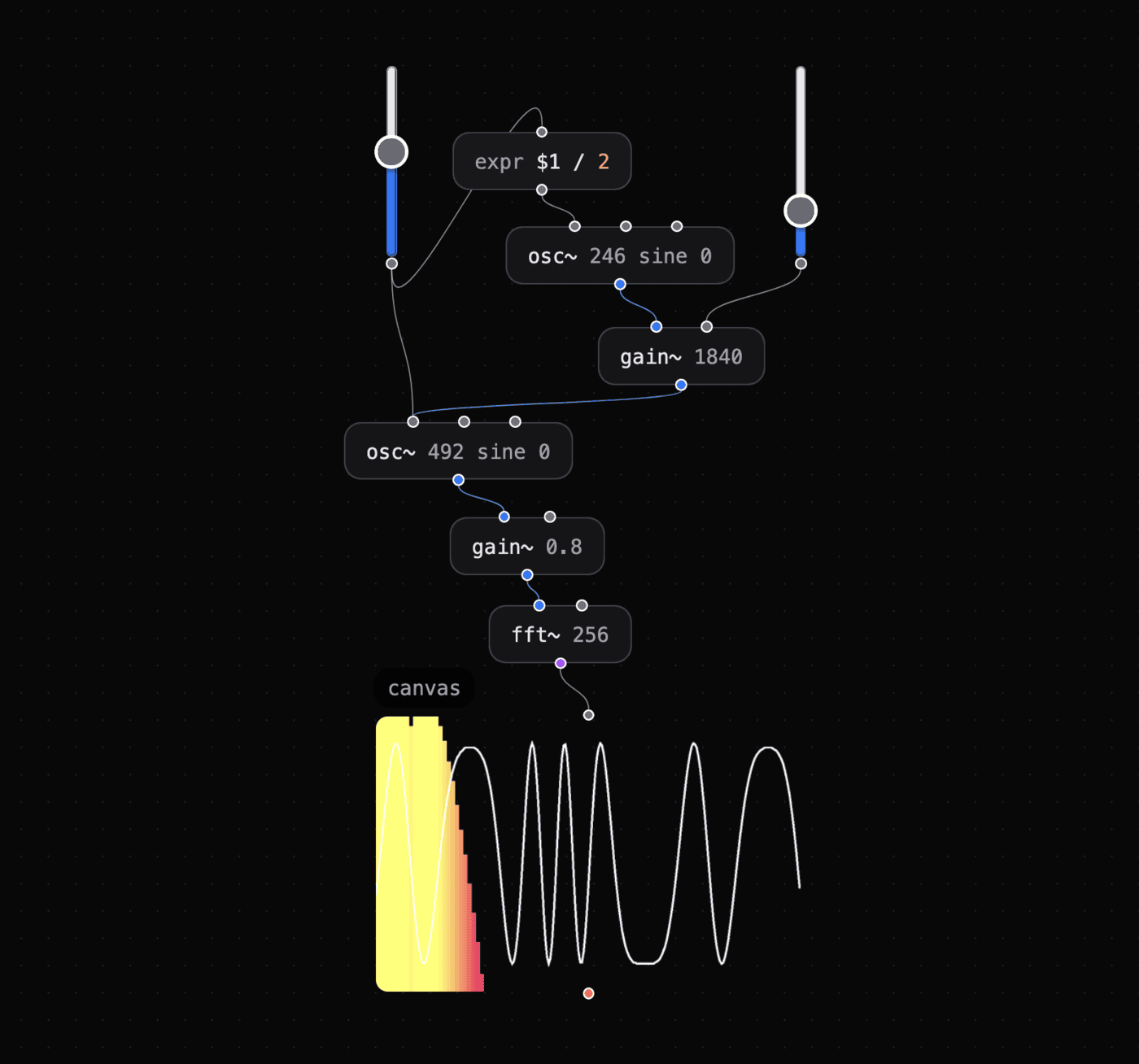
This audio chain sends an oscillator through a gain control to the output.
✨ Try this patch — FM synthesis using oscillators, expressions, gain control, and frequency analysis.
How It Works
Think of audio chaining as a hardware signal chain: oscillator → filter → amp → speaker. Each ~ object processes a signal and sends it to the next object.
Keep these two rules in mind:
- End the chain with
out~. You do not hear sound until the signal reachesout~. - Use
gain~to control volume. Connect it beforeout~to avoid clipping.
[osc~ 440] → [gain~ 0.5] → [out~]
Find audio objects in the Audio category of the object browser.
Try It
Exercise — Simple tone
- Create an
osc~ 440object. It produces a 440 Hz sine wave. - Connect it to a
gain~ 0.3object. - Connect
gain~toout~. - Press play in the transport.
- Listen for the tone.
Exercise — Add a filter
- Insert
lowpass~ 800betweenosc~andgain~. - Change the frequency value.
- Listen for the tone to get brighter or darker.
Monitoring Audio
Use these objects to monitor an audio chain:
- scope~ — Show the waveform shape in real time.
- tap~ — Send waveform frames as messages to canvas or GLSL.
- meter~ — Show loudness as a level bar.
- env~ — Send loudness as a number you can route elsewhere.
See Audio Reactivity to use audio data for visuals.
Fun Examples
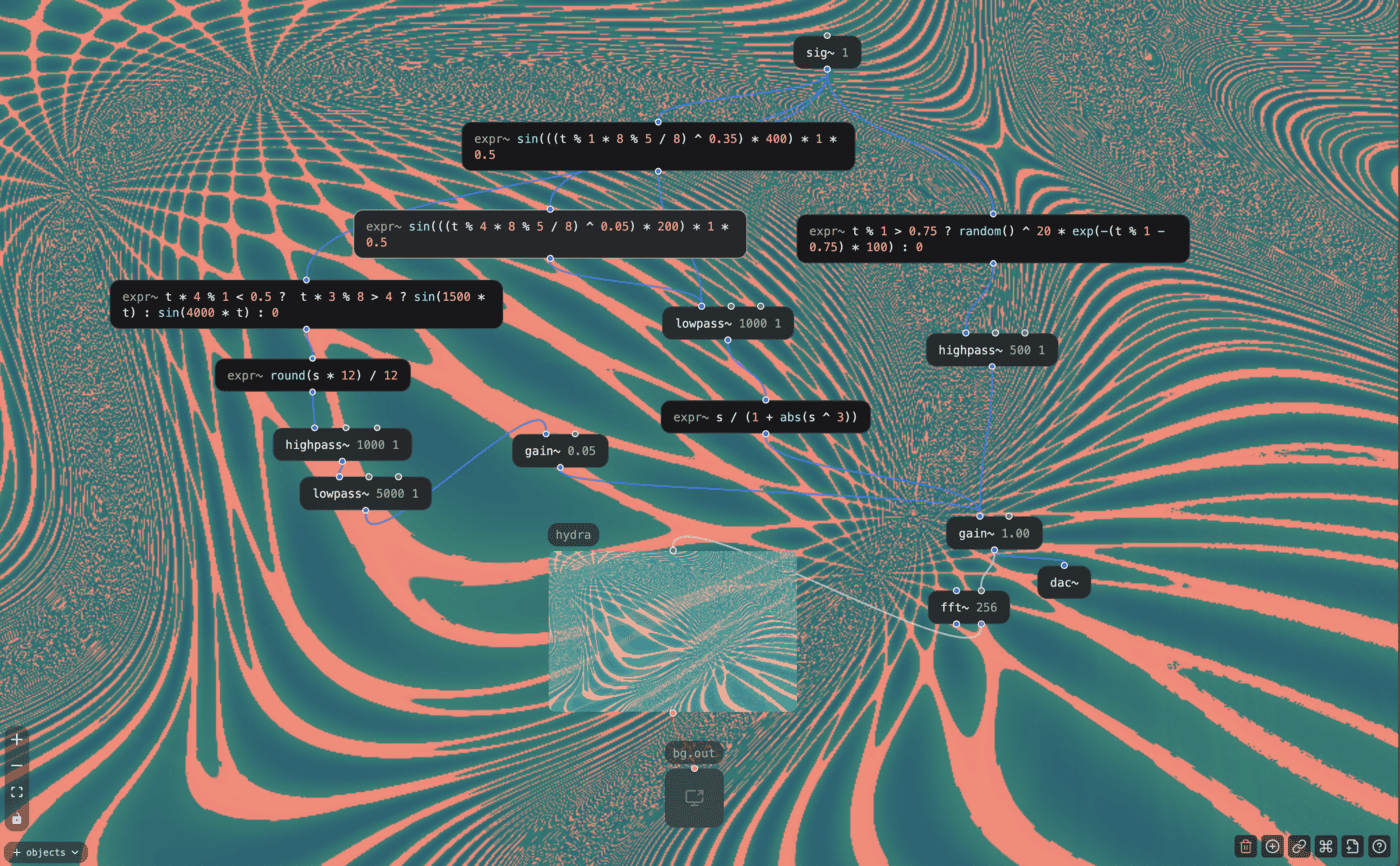
This patch by @kijjaz creates a beat with mathematical expressions:
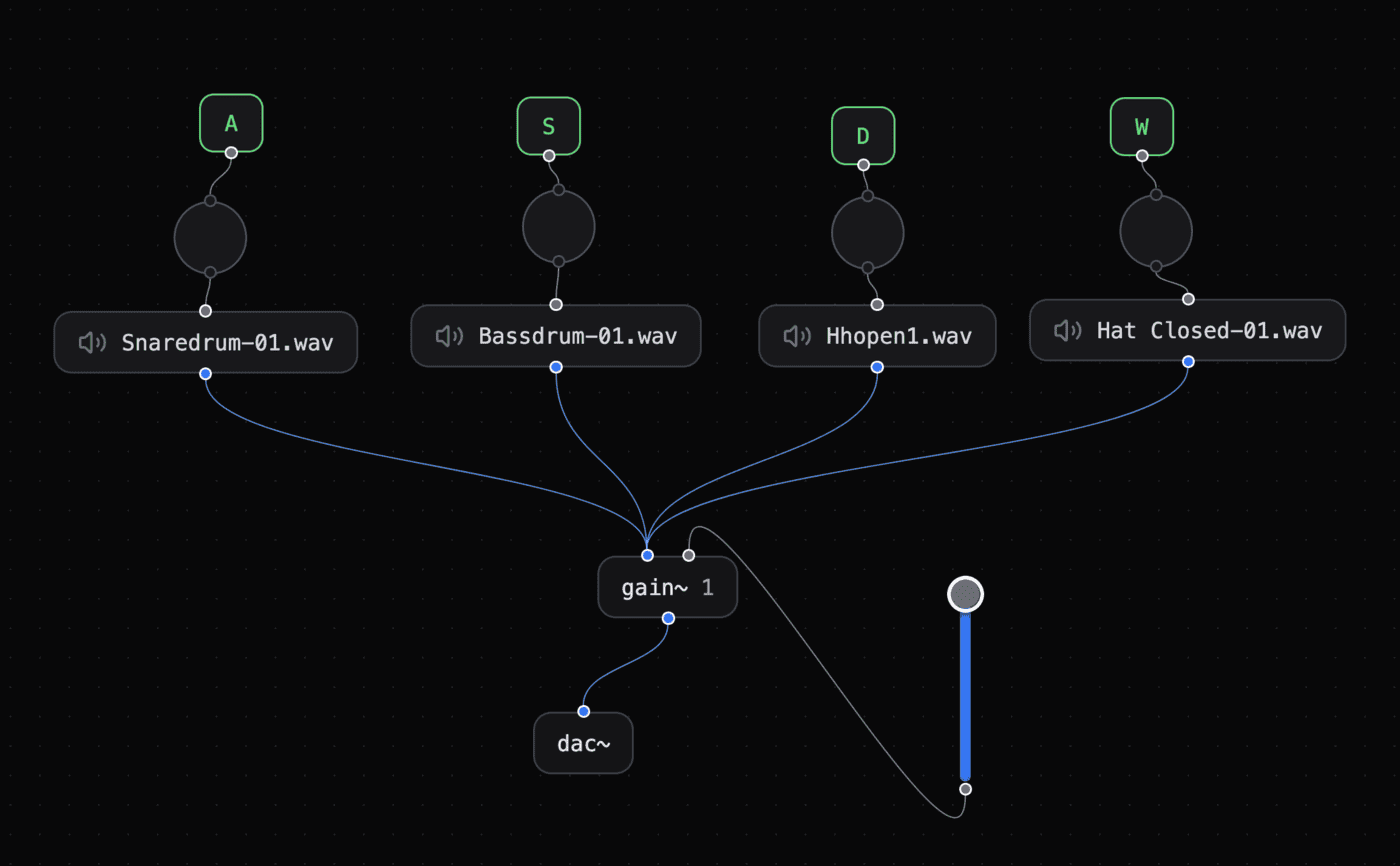
Build a drum machine with this patch. Use W A S D to play drums:
Wireless Audio Routing
Use send~ <channel> and recv~ <channel> to route audio across a patch without cables:
[osc~ 440] → [send~ synth] [recv~ synth] → [gain~ 0.5] → [out~]
This keeps complex patches readable by removing long cables.
See Also
- Audio Reactivity — Drive visuals with audio data.
- Video Chaining — Connect visual objects.
- Data Types — Learn about Patchies data types.
- send~ — Send audio to a named channel.
- recv~ — Receive audio from a named channel.