Transport Control
Patchies uses a master clock to synchronize time-based objects to one clock source. This keeps audio and visuals in sync across a patch.
Opening the Transport Panel
Click the transport button in the bottom toolbar to open the transport panel. You can also press Shift+Space.

The transport panel controls playback, tempo, and synchronization.
Controls
| Control | Description |
|---|---|
| Play/Pause | Start or pause playback. Pause freezes the clock. Shortcut: Space. |
| Stop | Reset the clock to 0 and pause it. |
| Metronome | Set the tempo by tapping. Enable or disable click sounds. |
| BPM | Set tempo in beats per minute. Default: 120. Patchies saves it across sessions. |
| Time Signature | The display uses 4/4. Click to edit, type 6/8 or 3/4, then press Enter. |
| Time Display | Show the current position. Click to change format. Double-click to edit and seek. |
| Volume | Set the master volume. |
| DSP | Enable or disable audio processing. Red means DSP is off and the AudioContext is suspended. |
| Timeline | Show or hide the timeline viewer. The icon highlights when it is visible. |
| Sync | Enable or disable network sync. Gray is off, blue is waiting, and green is connected. |
For a time signature, use 2, 4, 8, or 16 as the denominator. Patchies saves the time signature across sessions.
Time Display Formats
Click the time display to cycle through these formats:
- Time
02:35:42— minutes, seconds, and centiseconds - Bars
001:1:01— bars, beats, and sixteenths. This format uses the current time signature. - Seconds
00004.25— seconds with decimals
Double-click the display to edit its value and seek to a specific time.
DSP vs Volume
These controls work independently:
- DSP Off suspends the AudioContext. No audio processing occurs.
- Mute/Volume controls the output level. Audio processing continues in the background.
When DSP is off, pressing Play advances visuals but keeps audio silent.
How Sync Works
Visual Objects
Visual objects read from the global transport:
- GLSL:
iTimeuniform matches transport seconds - Hydra:
timevariable matches transport seconds - P5/Canvas/Three.js: Use
clock.timein your code - JSRunner:
clockobject providestime,beat,phase,bpm
When you pause, all visuals freeze at the same time. When you stop, all visuals reset to time 0.
Musical Objects
Musical objects have internal clocks and can synchronize with the transport. Enable Sync to transport in an object overflow menu. This locks the object playback and BPM to the global transport. The setting is off by default.
See Clock API to schedule sample-accurate callbacks on specific beats and create repeated patterns.
Metronome
Click the metronome icon next to the BPM field to open the metronome panel:
- Click the tap tempo area in time with the music. After the second tap, each tap updates the BPM. Stop for more than 2 seconds to reset tapping.
- Enable click sounds to hear a metronome tick on every beat.
Timeline Viewer
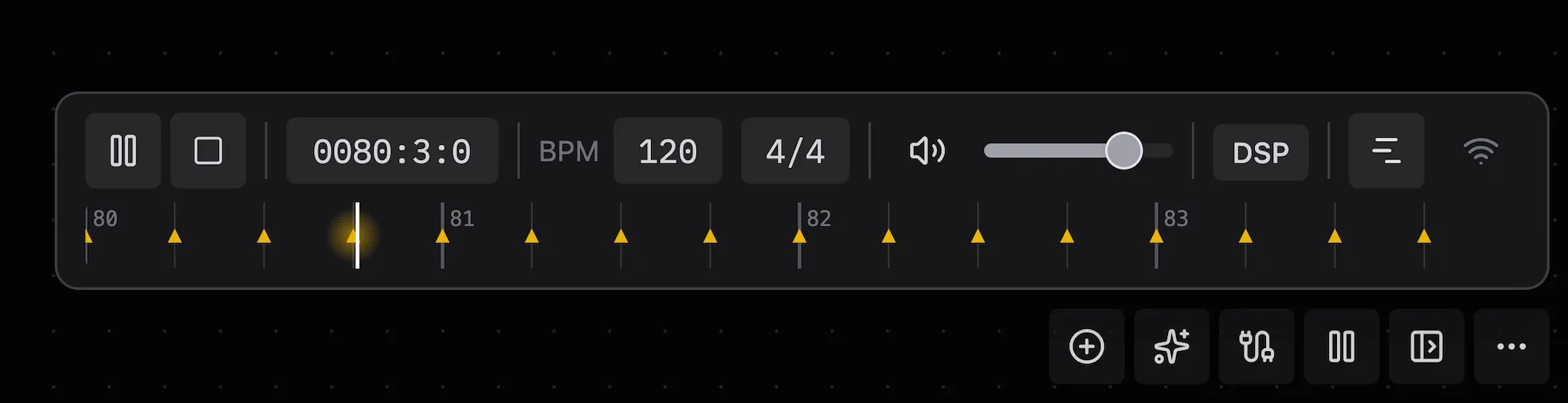
The timeline viewer shows clock events from clock.onBeat, clock.schedule, and clock.every. It shows when events occur and how they align with the beat grid.
Click the Timeline button in the transport panel to show or hide the viewer.
Timeline markers
| Marker | Shape | Scheduling Method |
|---|---|---|
| Triangle ▲ | Filled | Patchies draws clock.onBeat() at each registered beat position. |
| Diamond ◆ | Filled | Patchies draws clock.every() at each repeat interval. |
| Dashed line | Vertical | Patchies draws clock.schedule() at the scheduled time. |
Patchies gives each object a color. When an event occurs, a brief radial glow appears at its position.
Use clock.setTimelineStyle() to change an object color or hide it from the timeline. See Clock API for details.
Interacting with the timeline
- Click the timeline to seek to that position.
- Click and drag to scrub through time.
- Resize the panel by dragging its left edge. This works only on desktop.
Network Sync
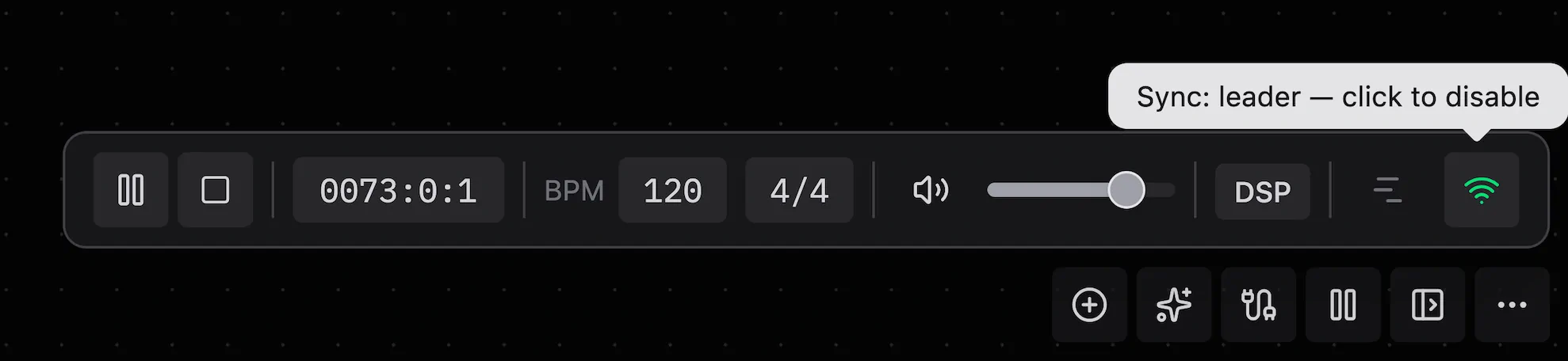
Network Sync lets Patchies instances in one peer-to-peer room share a transport. When enabled, all peers start, stop, and change BPM together. Use it for multi-screen installations or collaborative live performances.
Enabling
Click the Sync button in the transport panel. The tooltip shows your role:
- Sync: leader — your transport is the source of truth. Other peers follow it.
- Sync: 2 peers — you follow the leader. The transport controls are read-only.
All peers in the room must enable Sync. Patchies automatically elects the leader. If the leader disconnects, the next peer becomes leader.
What gets synced
| Property | Behavior |
|---|---|
| Play / Pause / Stop | Followers immediately match the leader state. |
| BPM | Followers update when the leader changes BPM. |
| Time signature | Followers update when the leader changes the time signature. |
| Transport position | Followers seek to the leader's position on connection. They correct drift every second. |
If you enable Sync while the leader plays, your transport seeks to the leader's current position. You join the performance at its current position.
Precision
Sync targets beat-level accuracy of about 25 ms. It is not sample-accurate. To trigger audio on a shared beat, use clock.onBeat or clock.every with { audio: true } on each machine. The synchronized BPM and time origin make the callbacks run at the same musical time.
See Also
- Clock API — Schedule code on synchronized beats.
- P2P Messaging — Use rooms and peer connections.
- beat — Output the current beat when it changes.
- Audio Chaining — Connect audio objects.
- Video Chaining — Connect visual objects.
- Audio Reactivity — Use audio analysis data.