Video Chaining
Connect visual objects to make a video pipeline. Each object sends its output to the next object, so you can layer, blend, and transform visuals in real time.
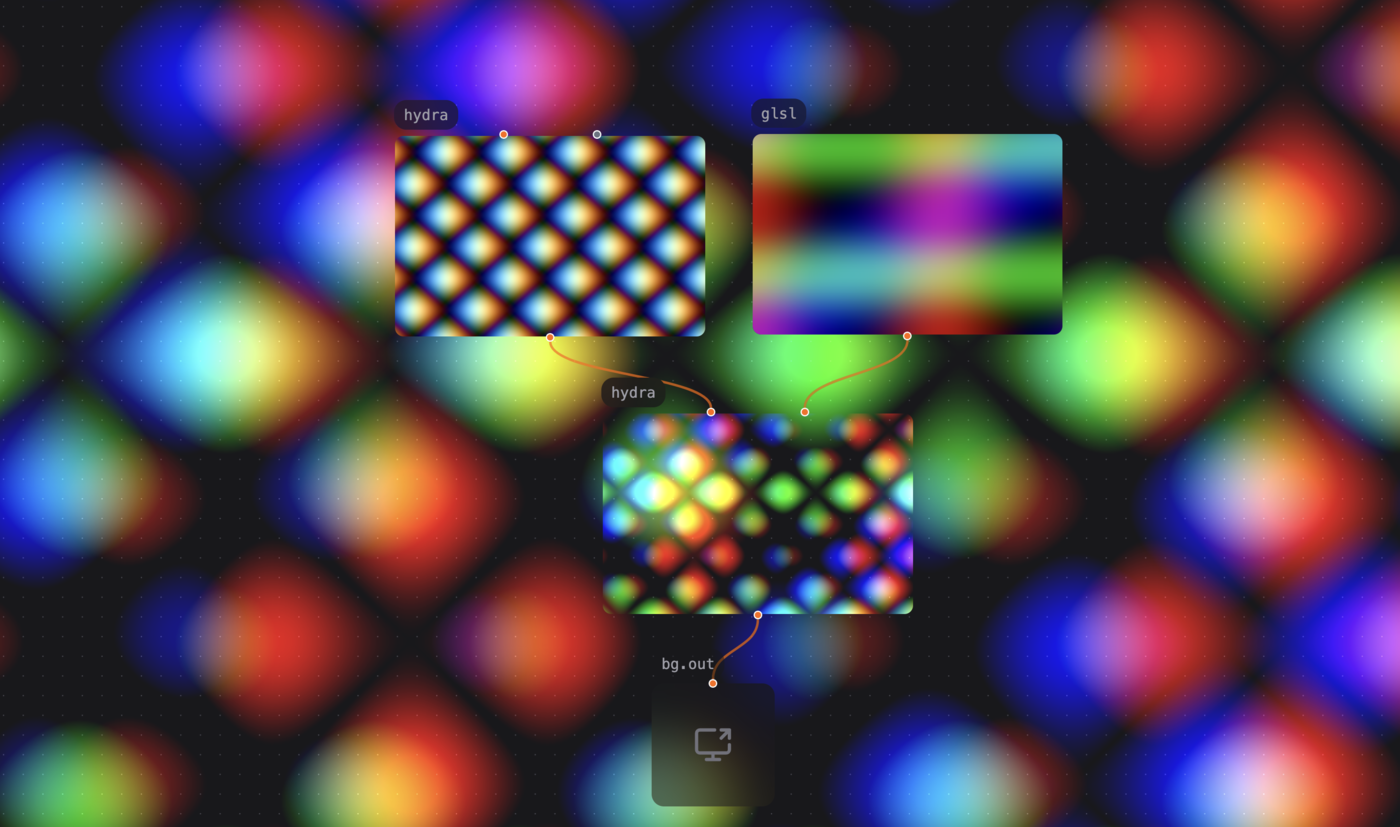
In this example, a hydra object and a glsl object each produce a pattern. They send their frames to a third hydra object. It combines them with src(s0).sub(s1).out(o0).
This is similar to shader graphs in TouchDesigner, Unity, Blender, and Substance Designer.
How It Works
Visual objects use orange inlets and outlets. These are circles at the top and bottom of an object:
- Orange inlet — Accepts a video frame.
- Orange outlet — Sends a video frame to the next object.
Connect orange outlet → orange inlet to chain them:
[p5] → [hydra>] → [glsl>] → [bg.out]
To show a visual, connect the final object to bg.out. You can also select Use as output.
Try It
Exercise — Visual passthrough
- Create a
p5object. - Write code that draws to the canvas.
- Create a
hydra>preset withEnter→ searchhydra>. - Connect the orange outlet of
p5to the orange inlet ofhydra>. - Connect
hydra>tobg.outto show the p5 sketch as the background.
Exercise — Blend two visuals
- Create two visual objects, such as
p5andglsl. - Create a
sub.hydrapreset. It has two orange inlets. - Connect each visual object to an inlet of
sub.hydra. - Connect
sub.hydratobg.outto subtract the two visuals.
Mixed Image Sizes
Video sources keep their own pixel dimensions. Use Transform when you want to place an image or video with a different aspect ratio into the patch output. Choose Contain to show the full source without distortion, or Cover to fill the output and crop its edges. Then use Over or Composite to place the transformed source over a background.
[img] → [Transform: Contain] ──┐
                               ├→ [Over] → [bg.out]
[video / background] ──────────┘
The transparent area around a contained source lets the background show through. Use Stretch only when you intentionally want the source to fill the output regardless of its proportions.
Getting Started with Presets
The preset library contains objects for video chaining. Enable them from Preset Packs:
hydra>,glsl>,regl>,swgl>,three>— Pass video through unchanged.diff.hydra,add.hydra,sub.hydra— Blend two video inputs with Hydra.Fit,Transform,Over,Composite— Preserve proportions, place a source, and layer it over another video input.- Read the hydra and glsl docs for more presets.
Sending to output
- Right-click a visual object or open its ··· menu.
- Select Use as output.
Patchies uses this object as the fullscreen output. It overrides any bg.out connection.
- Select Use as output again on the same object to clear the override.
- Select another object to replace the current output. Patchies uses one output object at a time.
- Use this for live performance. Patchies does not save the setting across sessions.
Output Screen
Open a separate browser window to display visual output. Use it with a projector, a second monitor, or an audience display. Keep editing in the main Patchies window.
Open it from the command palette: Cmd+K → "Open Output Screen".
The output screen shows the same output as bg.out or Use as output. It hides the patch canvas, sidebar, object chrome, and editing controls.
- Move the output screen to a projector or second monitor.
- Focus the output screen.
- Press
fto enter browser fullscreen.
Use the browser fullscreen exit shortcut, such as Esc, to leave fullscreen.
You can change the frame destination without closing the output screen:
- Background — Shows output behind the patch canvas in the main window.
- Output Screen — Shows output in the secondary output window.
Change this in Settings → Rendering → Output target. You can also use Cmd+K → "Toggle Output Target".
The output screen stays connected when you reload either window. Reload the output screen to reconnect it automatically. Reload the main patch to reconnect the output screen within one second.
Exercise — Dual-screen setup
- Open the output screen with
Cmd+K→ "Open Output Screen". - Create a
hydraobject. - Write a pattern.
- Right-click the
hydraobject and select Use as output. - Move the output window to a second monitor or projector.
- Focus the output window and press
ffor fullscreen output.
Output Resolution
Patches render at 1280×720 by default. Change this with Set Output Size (Cmd+K → "Set Output Size"):
| Input | Result |
|---|---|
1920x1080 |
Sets an explicit resolution. |
720p |
Sets 1280×720. |
1080p |
Sets 1920×1080. |
2k |
Sets 2560×1440. |
4k |
Sets 3840×2160. |
screen |
Matches the current browser window size without DPR. |
2x |
Multiplies the window size by 2. You can also use 0.5x or 1.5x. |
clear |
Resets to the default 1280×720. |
Patchies saves the selected resolution with the patch. The resolution stays the same when you open the patch on another screen.
Higher resolutions produce sharper output but use more GPU memory. Use 0.5x or screen for complex patches.
Wireless Video Routing
Use send.vdo <channel> and recv.vdo <channel> to route video without cables:
[p5] → [send.vdo main] [recv.vdo main] → [bg.out]
This keeps large patches readable by removing long orange cables.
Performance
Objects on the rendering pipeline run faster than main-thread objects. They avoid expensive pixel copies between the GPU and CPU.
For high-performance video chaining, prefer:
See Also
- hydra — Generate video with Hydra.
- glsl — Write GLSL shaders.
- canvas — Draw with an offscreen canvas.
- send.vdo — Send video to a named channel.
- recv.vdo — Receive video from a named channel.
- Audio Chaining — Connect audio objects.
- Data Types — Learn about Patchies data types.
- Rendering Pipeline — Learn about visual performance.