Collections
Patchies keeps your object browser and quick-insert menu focused. Instead of starting with every tool, choose a collection for the kind of patch you want to make.
Collections combine the objects and ready-made presets that belong together. For example, Visuals includes packs for shaders, graphics and interactive widgets.
First-time setup
The first time you open the object browser with Ctrl/Cmd + O, Patchies asks
what you want to make. Select one or more collections, then select
Continue.
Select Skip for now to only start with Essentials, the minimal starter objects. You can add or remove collections at any time.
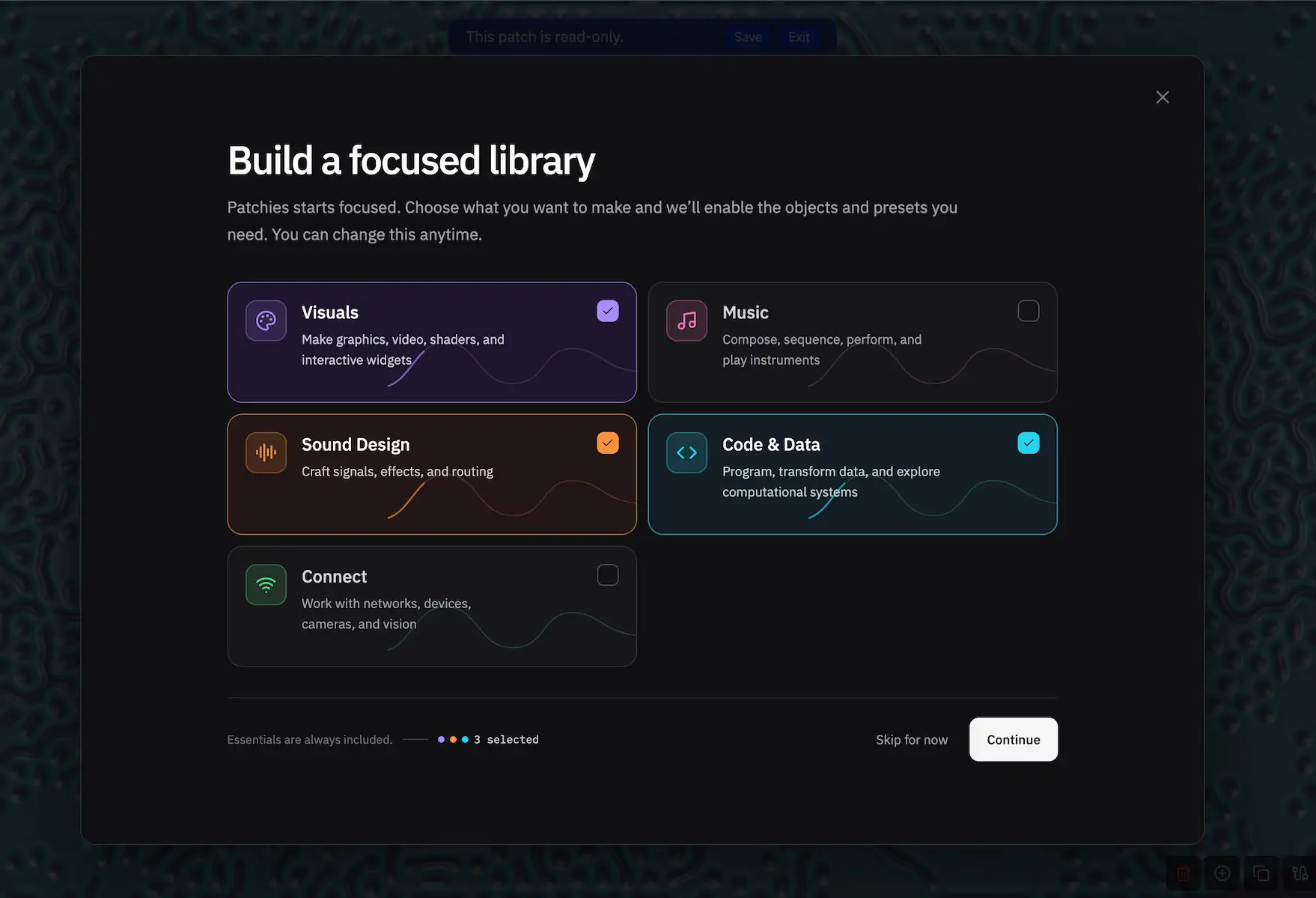
Manage collections
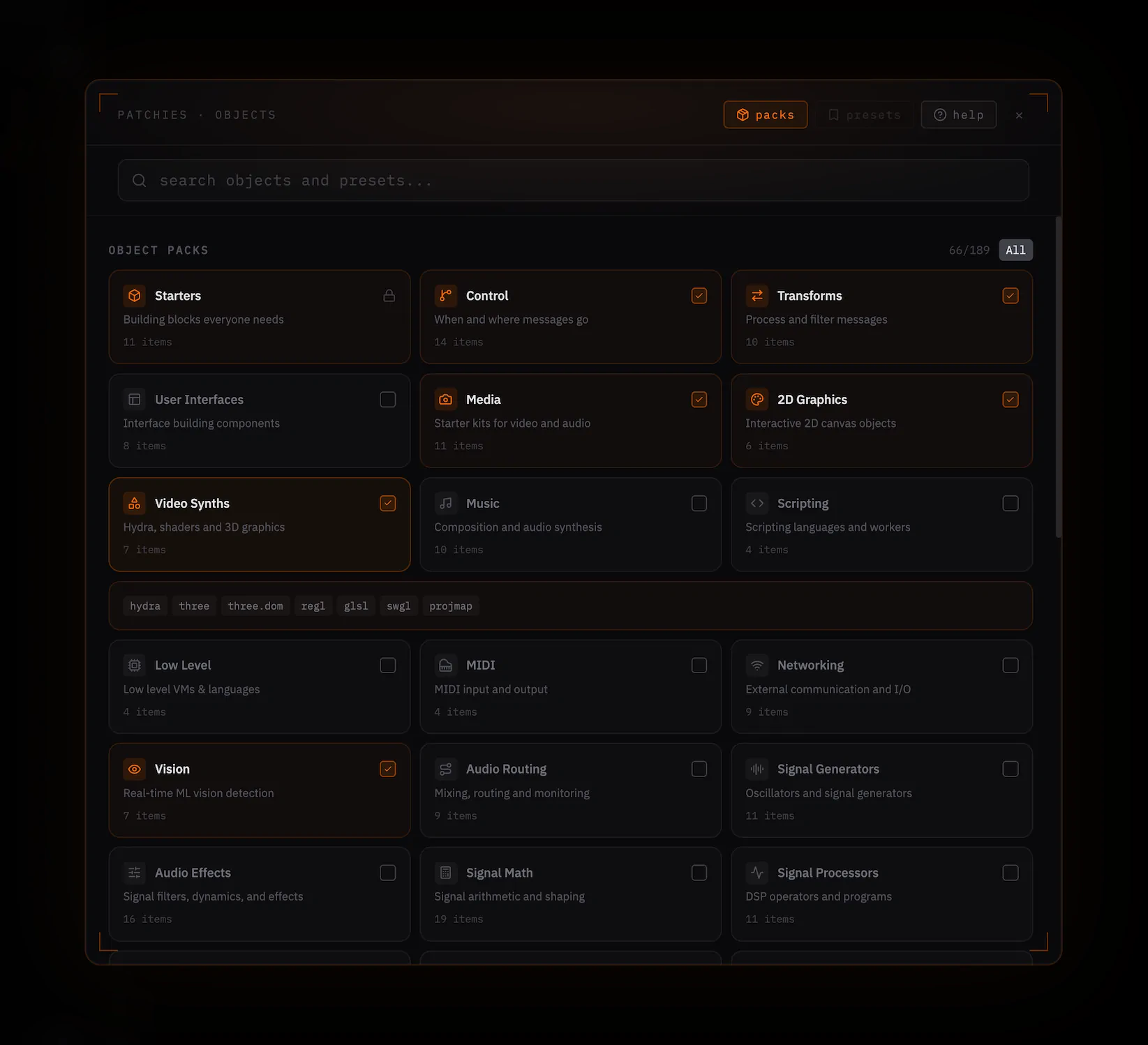
Open the object browser and select Manage collections. You can also open the Packs sidebar tab.
Each collection expands into its packs, and each pack expands into a read-only list of included objects or presets.
- Select a collection to enable its complete set of packs.
- Select an individual pack to fine-tune what appears in your catalog.
- A mixed checkbox means you manually changed one or more packs in that collection.
Some collections list Included from … groups. These are the specific objects required by presets in that collection, named with the pack they come from. Patchies enables those objects without turning on the rest of the source pack.
Some large or specialised preset packs are marked Optional. They stay visible in their collection, but you enable them individually. Optional packs do not change the collection’s checkbox state.
Tips
- Search collections, packs, objects, and presets from the Packs sidebar or Manage collections view.
- Select All to enable every standard pack. Experimental and heavyweight archives stay opt-in.
- Search for a disabled object to get a direct Enable & Add action.
See Also
- Adding Objects — Add objects to a patch.
- Presets — Save and use object presets.